
Installing an OS from an ISO image gives you full control over the installation process, including disk partitioning and other advanced configuration options. Follow the steps below to install an OS using an ISO image in VirtFusion.
1. Log in to your VirtFusion Control Panel.
2. From the dashboard, locate your server in the server list and click Manage.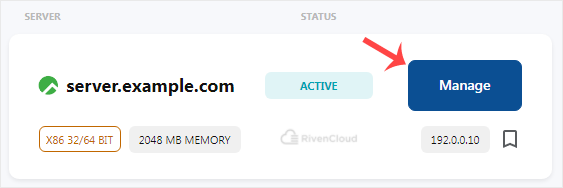
3. Click on the Media tab.
4. Choose the ISO image from the drop-down menu, then click Insert.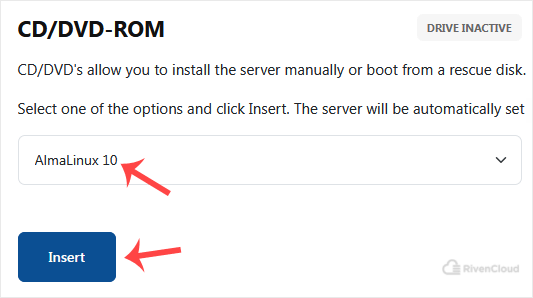
5. Please make sure the boot order is set to CD/DVD.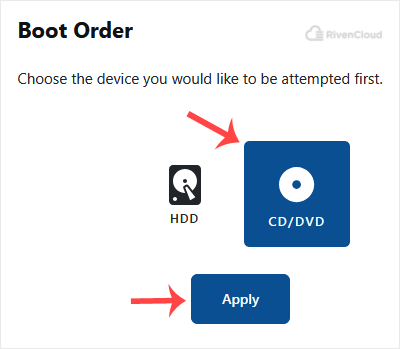
6. Go to the Overview tab and click the VNC icon.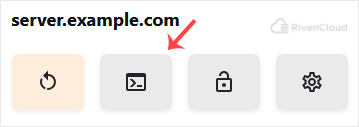
7. Most operating systems ask you to press any button to start an OS installation while booting. When prompted, press any key on your keyboard, and the OS installation will begin. It may also show you an option such as Install OS or Test this media. For an OS installation, select Install OS and press Enter.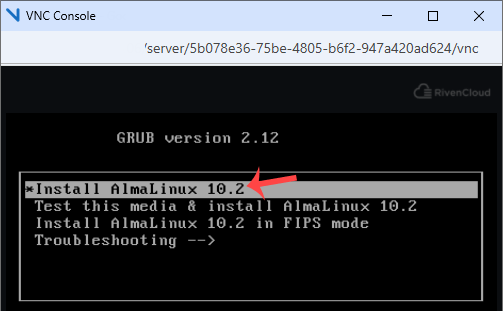
Once the installation starts, it will ask you to create a partition, set a password, etc.
After installation completes, go to Media, set HDD as the boot order, click Apply, and reboot the VPS. Otherwise, it will boot into installation mode instead of normal mode.